

You publish a new page on your WordPress website, open Google Search Console, and see a confusing message: “Discovered – currently not indexed.” Your page is not showing up on Google, and nobody can tell you why.
Relax. This is one of the most common indexing statuses, and it does not mean your site has a penalty. It simply means Google knows your page exists but has not visited it yet. In this beginner-friendly guide you will learn what the status means, why it happens, and exactly how to fix it step by step. No coding is needed.
| Quick answer: To fix “Discovered – currently not indexed”, inspect the URL in Search Console, make sure nothing blocks it, click Request Indexing, add internal links from related posts, improve thin content, and resubmit your sitemap. Then give Google a few days to a few weeks to crawl the page. |
What Does “Discovered – Currently Not Indexed” Mean?
Before Google can show your page in search results, it goes through four stages: discover, crawl, index and rank. This status means your page is stuck after the first stage. Google found the URL (usually from your sitemap or from a link), but it has not crawled the page yet, so the page is not stored in Google’s index.
In simple words: Google knows your page exists, but it has not opened it. Because the page is not in the index, it cannot appear in search results, no matter how good the content is.

Figure 1: The problem happens between the Discover and Crawl stages.
Discovered vs Crawled – Currently Not Indexed
Beginners often mix up two similar statuses. They look alike but need different fixes:
| Status | What it means | Usual cause |
| Discovered – currently not indexed | Google knows the URL but has not visited the page. | Crawl scheduling, weak site signals, slow server, no internal links |
| Crawled – currently not indexed | Google visited the page but chose not to add it to the index. | Thin, duplicate or low-quality content |
Where to Find This Status in Search Console
You can see the affected pages in just a few clicks:
- Open Google Search Console and select your website property.
- In the left menu, click Indexing → Pages.
- Scroll down to the section called “Why pages aren’t indexed”.
- Click “Discovered – currently not indexed”.
- Review the list of URLs. These are the pages Google has not crawled yet.
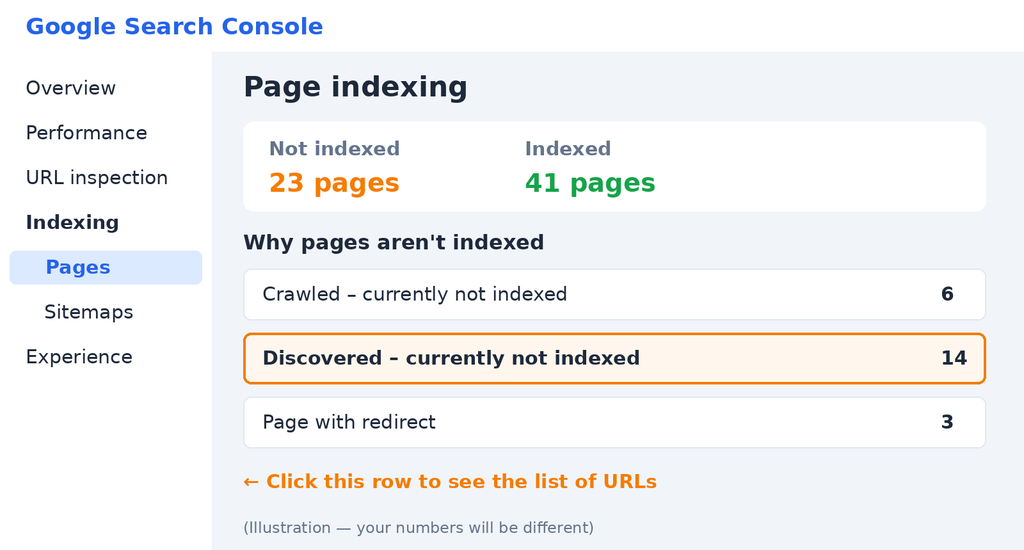
Figure 2: The Page indexing report in Google Search Console.
If the list is short and made up of brand-new posts, there is usually nothing to worry about. If it keeps growing, or older pages stay in this list for weeks, follow the fixes below.
Why Does This Happen? 6 Common Reasons
Google does not publish one single cause, but these are the reasons that show up most often on small and medium WordPress sites.

Figure 3: The six most common causes.
1. Crawl budget and low-value pages
Google only spends a limited amount of time on each website. If your site has hundreds of thin pages such as tag archives, empty categories or auto-generated URLs, Google may delay crawling your new pages.
2. A slow or unstable server
When your hosting responds slowly or returns errors, Googlebot slows down to avoid overloading your site. Cheap shared hosting and heavy plugins are the usual culprits.
3. Weak or duplicate content
If Google expects that a page will not add much value, for example because it is very short or similar to other pages, it may not prioritise it.
4. Orphan pages with no internal links
A page that no other page on your site links to is hard for Google to understand. Internal links tell Google that the page matters.
5. A new or low-authority domain
New websites have not built trust yet. Google may take longer to crawl everything until the site shows a steady history of useful content.
6. Technical blocks
A stray noindex tag, a robots.txt rule, a broken sitemap or bloated CSS and JavaScript files can all make crawling harder. Always rule these out first.
How to Fix “Discovered – Currently Not Indexed” in 5 Steps
Follow these steps in order. Most beginners can finish all five in under 30 minutes.

Figure 4: The five-step fix.
Step 1: Inspect the URL
Copy the full URL of the affected page and paste it into the search bar at the top of Search Console. This opens the URL Inspection tool and shows you the exact status Google has for that page.
Step 2: Run a Live Test
Click “Test Live URL”. This checks whether Google can access the page right now. Confirm that the page is available, is not blocked by robots.txt, and does not carry a noindex tag. If you find a problem, fix it before moving on. In WordPress, also check Settings → Reading and make sure “Discourage search engines from indexing this site” is unchecked.
Step 3: Click Request Indexing
If the live test looks healthy, click “Request Indexing”. This asks Google to put the page in its crawl queue. Google limits how many requests you can send each day, so use it for your most important pages and do not click it repeatedly for the same URL. It speeds things up but it does not guarantee indexing.
Step 4: Add Internal Links and Improve the Content
Open 2-3 older posts that are already indexed and related to the new page, then add a natural link to it. [[link to your related post here]] Next, read the page again. Is it clear, original and genuinely helpful? Add real examples, screenshots, a short FAQ and a proper title and meta description. Pages that clearly help readers are much easier for Google to justify crawling.
Step 5: Check Your Sitemap and Site Speed
Make sure the page is listed in your XML sitemap (Rank Math and Yoast create this automatically) and resubmit the sitemap in Indexing → Sitemaps. Then test your site speed. Use a caching plugin, compress your images and remove plugins you do not use. A faster site is crawled more often.
Extra WordPress Tips That Help
- Set low-value pages such as tag archives, author pages and thin category pages to noindex so Google focuses on your best content.
- Delete or merge duplicate and very short posts instead of leaving them online.
- Share the new post once on your social profiles. It is not a ranking factor, but it can help Google discover the page.
- Publish consistently. A site that adds useful content on a regular schedule tends to be crawled more often.
How Long Does It Take to Get Indexed?
There is no fixed time. Many pages are crawled within a few days after you request indexing, while others can take a few weeks, especially on new websites. If a page is still not indexed after about four weeks, the problem is usually content quality or a lack of internal links, not a bug. Improve the page, strengthen its internal links, and request indexing once more.
Common Mistakes to Avoid
- Clicking Request Indexing again and again for the same URL.
- Publishing many short, low-quality pages just to grow the post count.
- Leaving new posts without any internal links.
- Using spammy “instant indexing” tools or buying low-quality backlinks.
- Forgetting that a noindex tag or robots.txt rule is still active after a site launch.
Quick Checklist
- The page opens without errors and loads fast.
- No noindex tag and no robots.txt block.
- The page is in your XML sitemap.
- At least 2-3 internal links point to the page.
- The content is original, useful and complete.
- Indexing was requested once in URL Inspection.
Frequently Asked Questions
Is “Discovered – currently not indexed” bad for SEO?
Not by itself. It is a normal status for new pages. It becomes a concern only if many important pages stay in this state for a long time, because those pages cannot bring any search traffic.
Does Request Indexing guarantee my page will be indexed?
No. It asks Google to crawl the page sooner, but Google still decides whether the page deserves a place in the index. Quality and internal links matter most.
How many pages can I submit with Request Indexing?
Google limits the number of manual requests per day, and it does not publish an exact number. Use the tool for your most important pages and rely on your sitemap for the rest.
Can slow hosting cause this problem?
Yes. If your server is slow or often unavailable, Googlebot may reduce how often it crawls your site, which can leave pages in the discovered state for longer.
Should I delete pages that are not indexed?
Only if they are thin, duplicate or useless. For useful pages, improve the content and add internal links instead of deleting them.
Conclusion
“Discovered – currently not indexed” looks scary, but it is usually fixable. Check that nothing is blocking the page, request indexing once, add internal links, improve the content and keep your sitemap and site speed in good shape. Then be patient. Google needs time, and a website that publishes helpful content consistently earns more crawling over time.
Found this guide useful? Read our other beginner guides on WordPress and SEO, and subscribe so you never miss the next one.